AutoCAD Tips
Thursday, October 16, 2008
Electricity gone! What will happen to drawing?
When using AutoCAD, sometimes we are very concentrated on the drawing and forget to save. This is a very common mistake done by inexperienced users as well as advanced users. We forgot to save the file for a long time and the electricity went off… what will happen then!? You may say that you have a UPS unit and you are not affected from electric cut-offs. However, sometimes UPS units may not be activated immediately and the computer may shut down. Or maybe the electricity did not go but you computer suddenly frozen. Does anyone have a computer which does not freeze all of a sudden? In such a case, what will happen to the project that we are currently working on? We generally understand the value of our data when we lose them. All of the work that you have done so far suddenly becomes very valuable.
Most of the programs like AutoCAD, word has automatic saving features in order to compensate such cases. All of the work you have been doing is saved automatically at every 10 minutes as default. In order to activate this feature, you can use Tools/Options from the menu.

As you can see from the figure above, “Automatic Save” is selected and is set to 5 (1). This setting means that your work will be saved automatically at every 5 minutes. In addition to this, if you select “Create backup copy with each save“(2) option, then another backup file that has “.bak” extension is created at every time file is saved. You can use the “Drawing1.bak“ file as shown below, in case there is a problem during the saving operation or the original file is damaged so that it cannot be recovered. However, this file is not opened directly as you double click on the file or try to open it by using File/Open in AutoCAD.
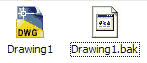
How to open “.bak” file in AutoCad? First, we have to change its extension. Select the file, then press F2 or make a single click on its name and wait for 1-2 seconds. You will see that you can change the name of the file. After that, change its extension to “.dwg”. Now, we can open the file in AutoCAD.
If you didn’t change the Windows folder options, “.dwg” is not visible. In order to open it, you must select folder options from the tools menu. Then, you should cancel the option shown below.

Another bad scenario is that, we did not save the file at all not even once but AutoCAD saved it automatically with constant intervals and the bad thing happened, AutoCAD became frozen. How can we recover our work in such a case? Due to the fact that the file has not been saved, AutoCAD saves it to the temporary folder (Temp). In order to access to this folder, enter start/run, then write %TEMP% and press enter. Temporary folder that is used by Windows is opened automatically. You will see such a file that is shown below. Change extension of this file to “.dwg” and then you can recover your work by opening this file in AutoCAD.
More Tips at DailyAutoCAD.com


